For this quick tutorial, I will be using Disk2VHD, which is part of the Systernals Suite (https://learn.microsoft.com/en-us/sysinternals/downloads/disk2vhd). With this tool, I could successfully convert machines running Windows 2003 Server and Windows 10. The success factor depends mostly on time and patience :).
Use cases
- Backing up an old server running an old ERP database.
- Hardware issues on an old Active Directory server.
- Cloning development machines.
- Moving old servers to the cloud.
Limitations
- Slow, really slow if the source is above a hundred gigabytes.
- Some drivers may prevent the system from booting.
- It may require extra work for modern Windows versions.
Requirements:
- You’ll need a secondary partition with enough space for the resulting image, although external storage or a secondary drive is preferred for improved read/write performance.
- Download Disk2Vhd from https://learn.microsoft.com/en-us/sysinternals/downloads/disk2vhd.
Let’s begin
- After downloading Disk2Vhd, execute it as Administrator.
- Accept the license agreement.
- Select the following checkboxes:
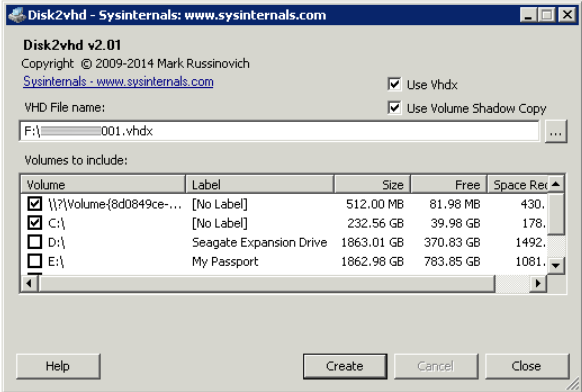
- Select the volume that contains the operating system.
- Select the volume name that has the following pattern \?\volume-{9999999999}. Without this volume, the virtual machine won’t be able to boot.
- Import the image to Hyper-V.
Bonus:
The following steps will work on a machine with Ubuntu and qemu-utils installed.
Converting VHDX to Qemu/KVM QCOW2
qemu-img convert -O qcow2 output.vhdx output.qcow2
Converting VHDX to VirtualBox’s VDI
qemu-img convert -O vdi output.vhdx output.vdi
Converting VHDX to VMWARE’s VMDK
qemu-img convert -O vmdk output.vhdx output.vmdk

 Waggos Blog